
How to track Squarespace contact form submits as Google Ads conversions (2022)
18. Apr 2026 — Squarespace has changed how their post-submit HTML works. It no longer fires scripts that trigger data layer events.
Normal GTM form submit triggers fire multiple times, including on bad submit attempts with validation errors, which leads to duplicate conversions. Squarespace forms are currently very hard to track properly. I recommend Tally, Typeform, Paperform, Hubspot forms, or anything else.
If you’re not running a e-commerce website, it can sometimes be unclear what conversions to track. Contact form is a good place to start. Here’s how.
In this tutorial we’ll be tracking Squarespace contact form submits using Google Tag Manager. This example is for tracking Google Ads conversions, but the same idea will work for any other conversion tracking, such as Meta Pixel tracking, or sending a custom event to Google Analytics.
Tracking steps
Go to your Squarespace contact form. Add this as the post-submit html
<script>

console.log("Contact form submitted. This is post-submit html");
window.dataLayer.push({
  'event' :  'contact-form-submit',
  'eventCallback' : function() {
    console.log("✅ 'contact-form-submit' -event sent to GTM datalayer successfully");
  }
});
</script>
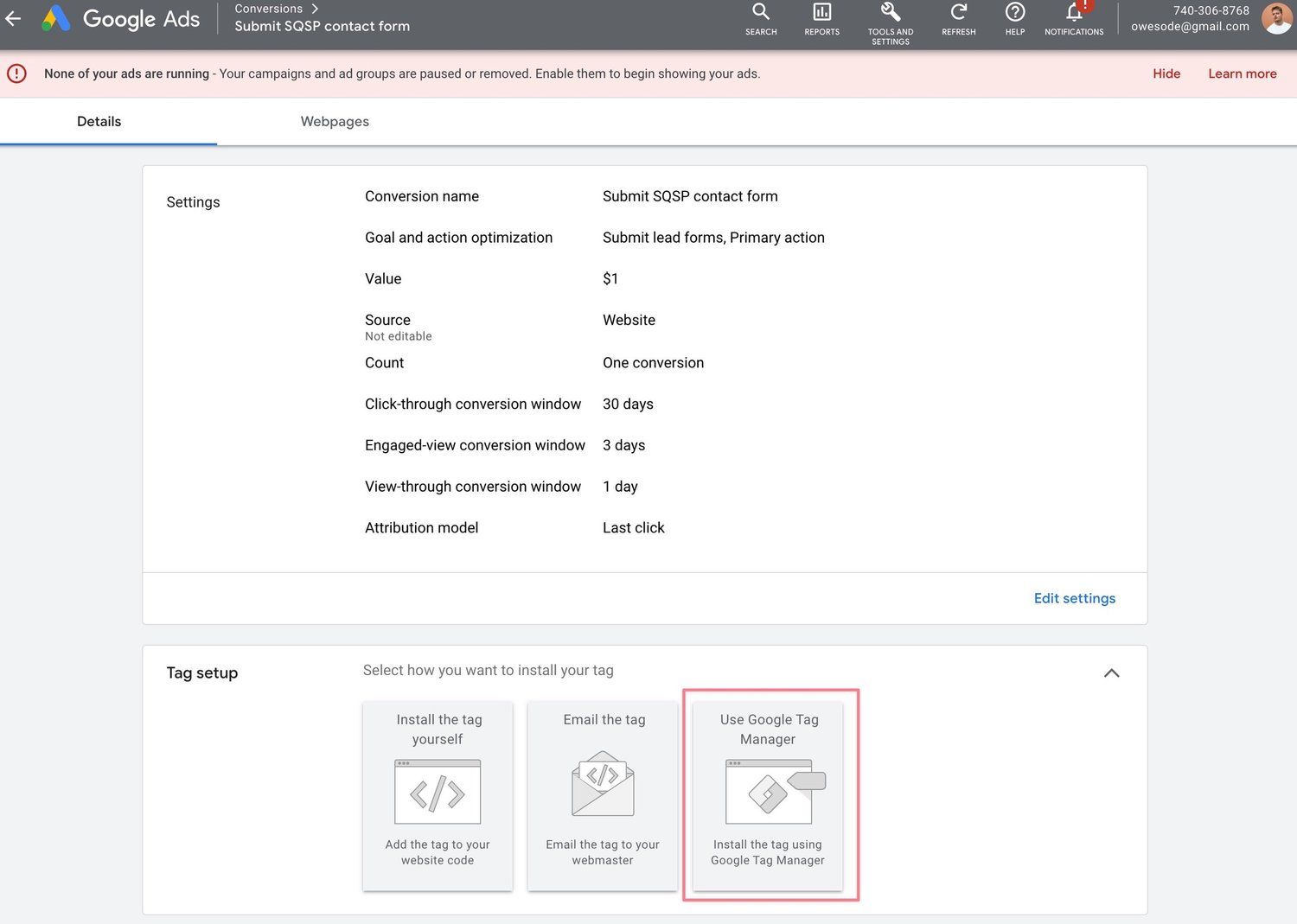
In Google ads, create a conversion. Pick Google Tag Manager as the method for installation.
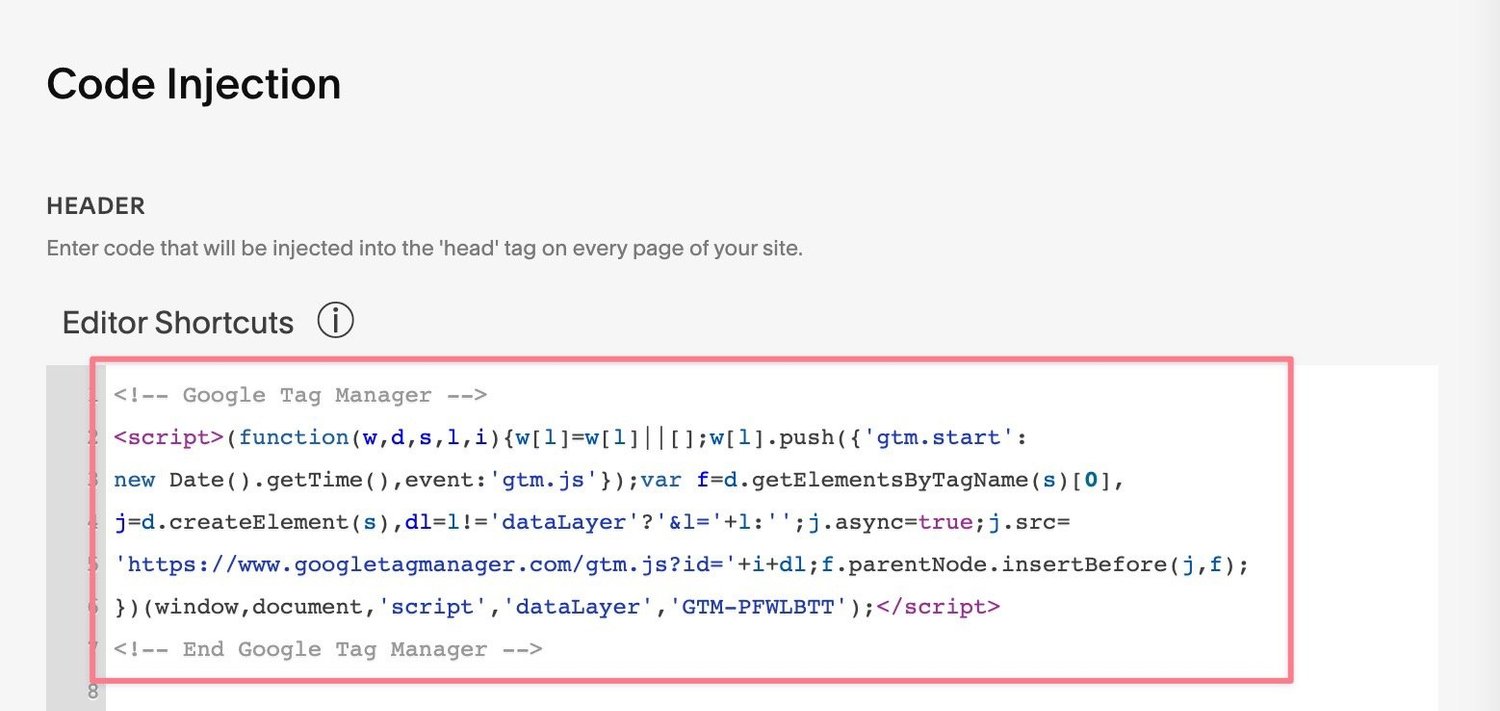
Install Google Tag Manager to Squarespace. Copy paste the snippet to Settings -> Advanced -> Code injection -> Header
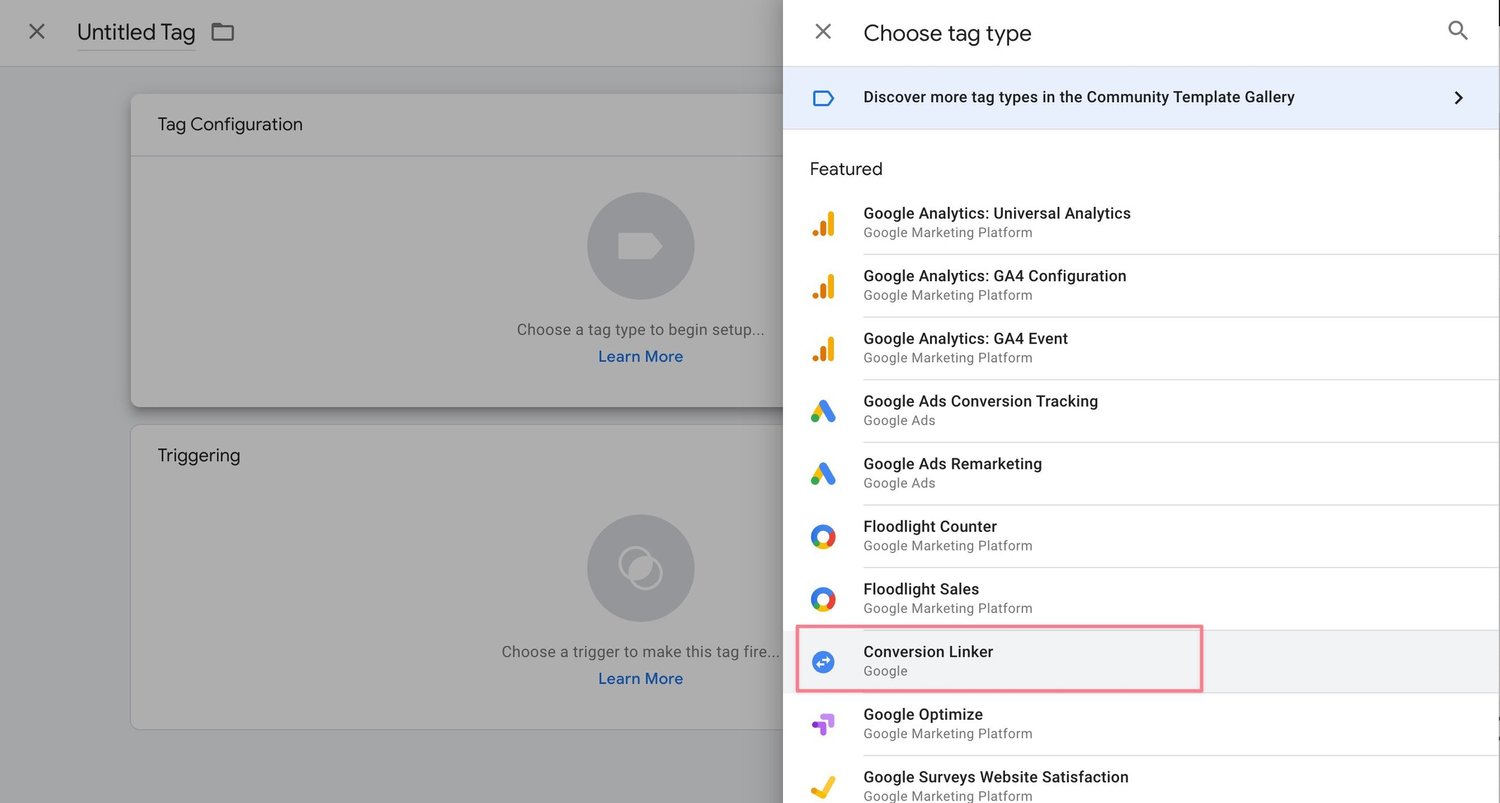
In Google Tag Manager, create a Google Ads conversion linker tag.
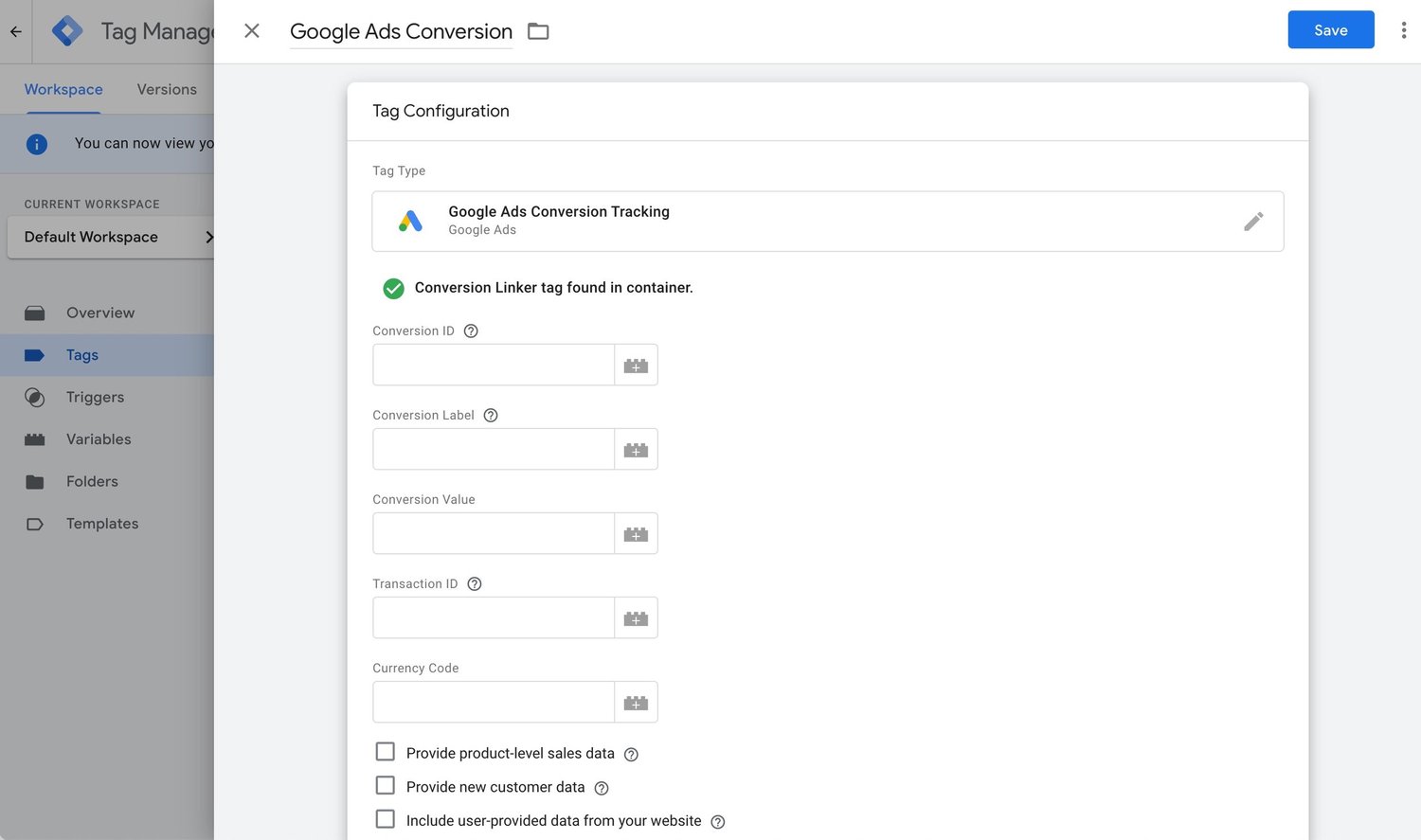
In Google Tag Manager, create a Google Ads conversion tag. Copy paste the conversion id and conversion ID from Google Ads to Google Tag Manager.
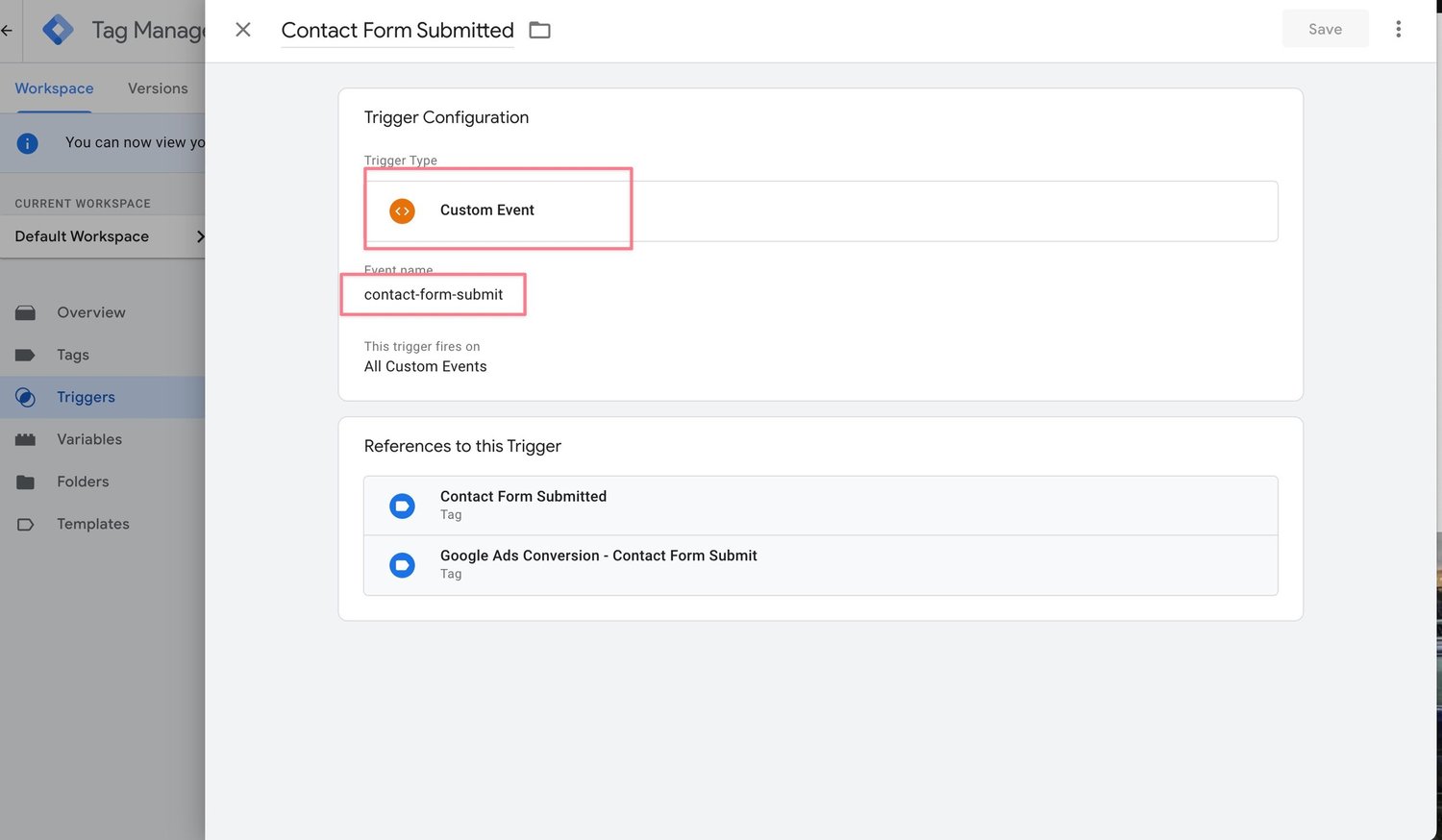
In Google Tag Manager create a new trigger. Custom event. Use contact-form-submit as the event name. Use this new trigger as the trigger to fire your Google Ads Conversion tag.
Preview using Google Tag Assistant and test.
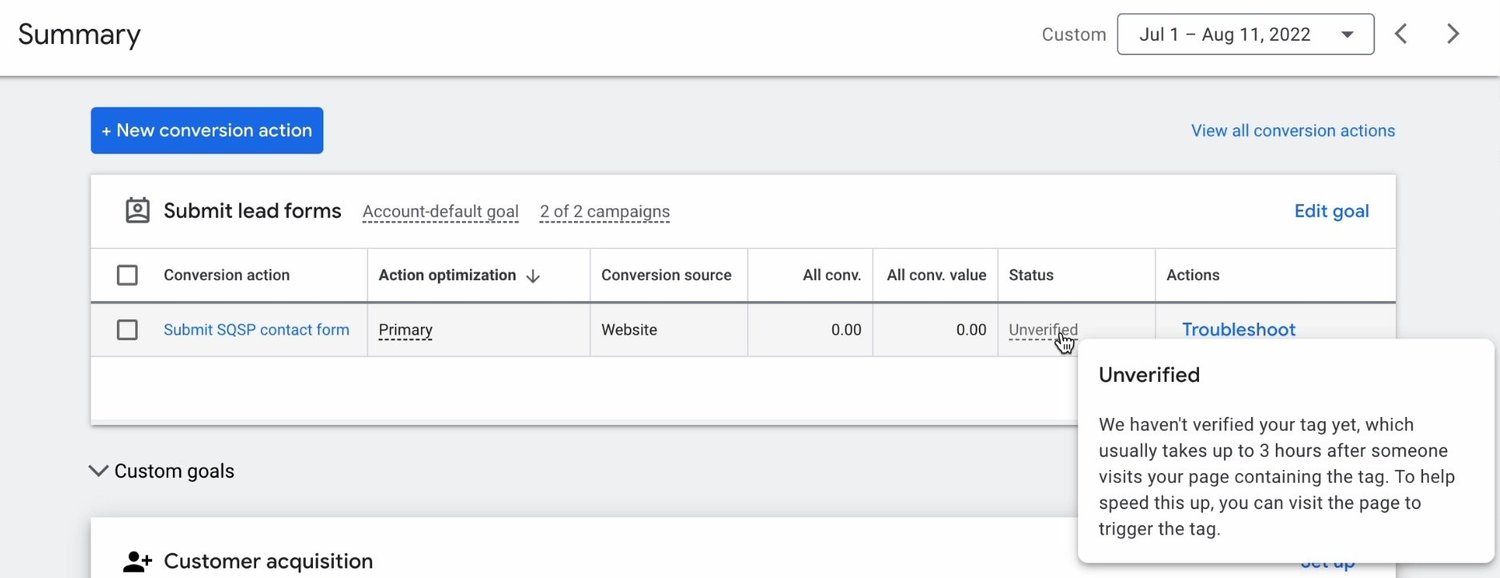
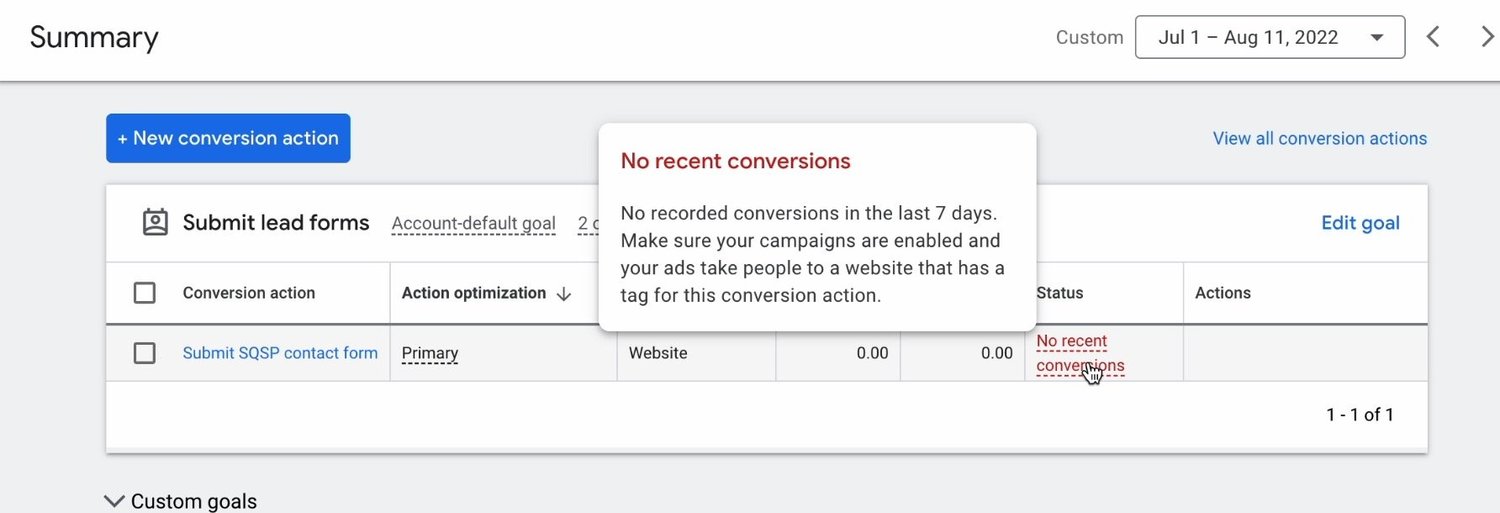
The conversion should turn from this…
…to this
Need help?
If you want 1-on-1 help you can hit me up at Contact us