
Squarespace E-commerce Purchase Google Ads Conversion (Enhanced)
If you’re using Google Ads to drive traffic and sales to a Squarespace E-commerce store, it’s absolutely essential to accurately track Google Ads conversions, so you can optimise your advertising efforts. In this guide, we’ll walk you through setting up the Google Ads conversion tracking for purchase events in Squarespace using Google Tag Manager (GTM).
Here’s a very quick look into all the tags, triggers and variables within Google Tag Manager
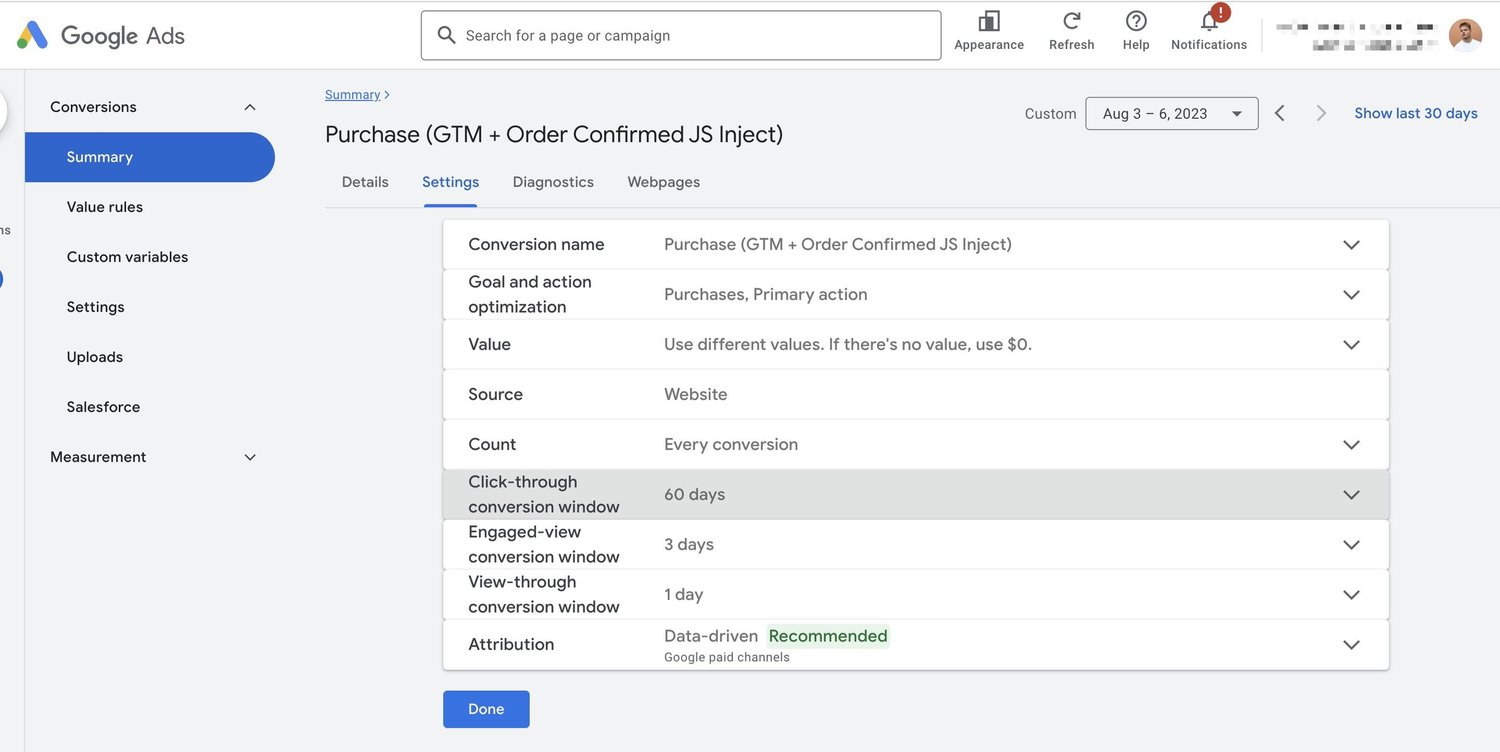
Before you do the steps below, of course, create the conversion within Google Ads. Do something like this. Make sure to enable “Enhaned Conversions” within Google Ads as well.
Step-by-Step Guide for tracking Squarespace Google Ads conversions
Google Tag Manager
- Navigate to Google Tag Manager.
- Create or choose the appropriate Google Tag Manager account and container
- If you haven’t installed GTM yet, just Google “How to install Google Tag Manager to Squarespace.” It’s one quick copy-paste.
Code Injection
Inject “data layer” code into Squarespace -> Code Injection -> Order Status Page
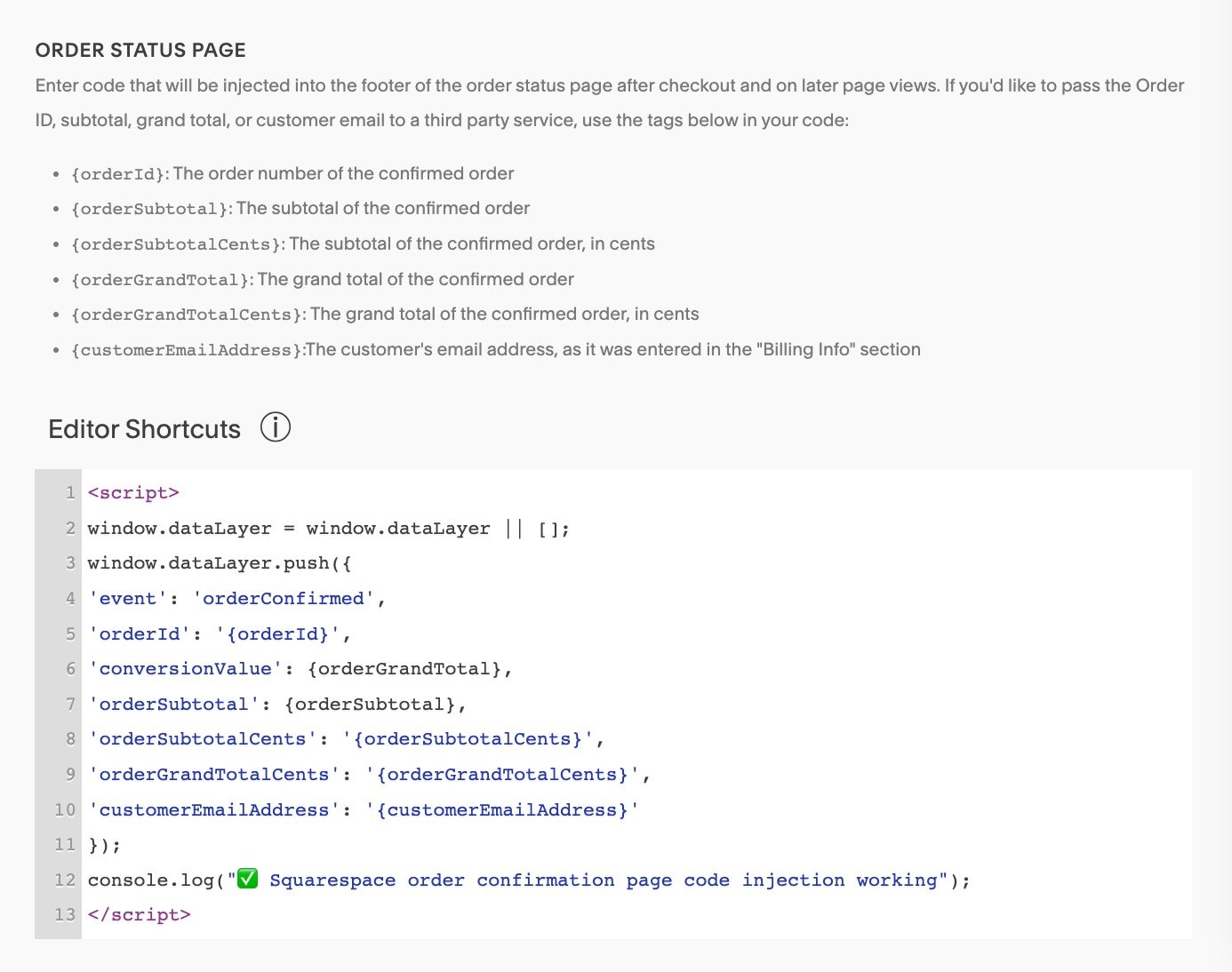
- Log into your Squarespace account and navigate to Settings -> Advanced -> Code Injection.
- Paste the following code javascript into the “ORDER STATUS PAGE” section:
<!--Add this to SQSP -> code injection -> ORDER STATUS PAGE -->
<script>
window.dataLayer = window.dataLayer || [];
window.dataLayer.push({
'event': 'orderConfirmed',
'orderId': '{orderId}',
'conversionValue': "{orderGrandTotal}",
'orderSubtotal': {orderSubtotal},
'orderSubtotalCents': '{orderSubtotalCents}',
'orderGrandTotalCents': '{orderGrandTotalCents}',
'customerEmailAddress': '{customerEmailAddress}'
});
console.log("✅ Squarespace order confirmation page: data layer JS working");
</script>
Custom Event Trigger
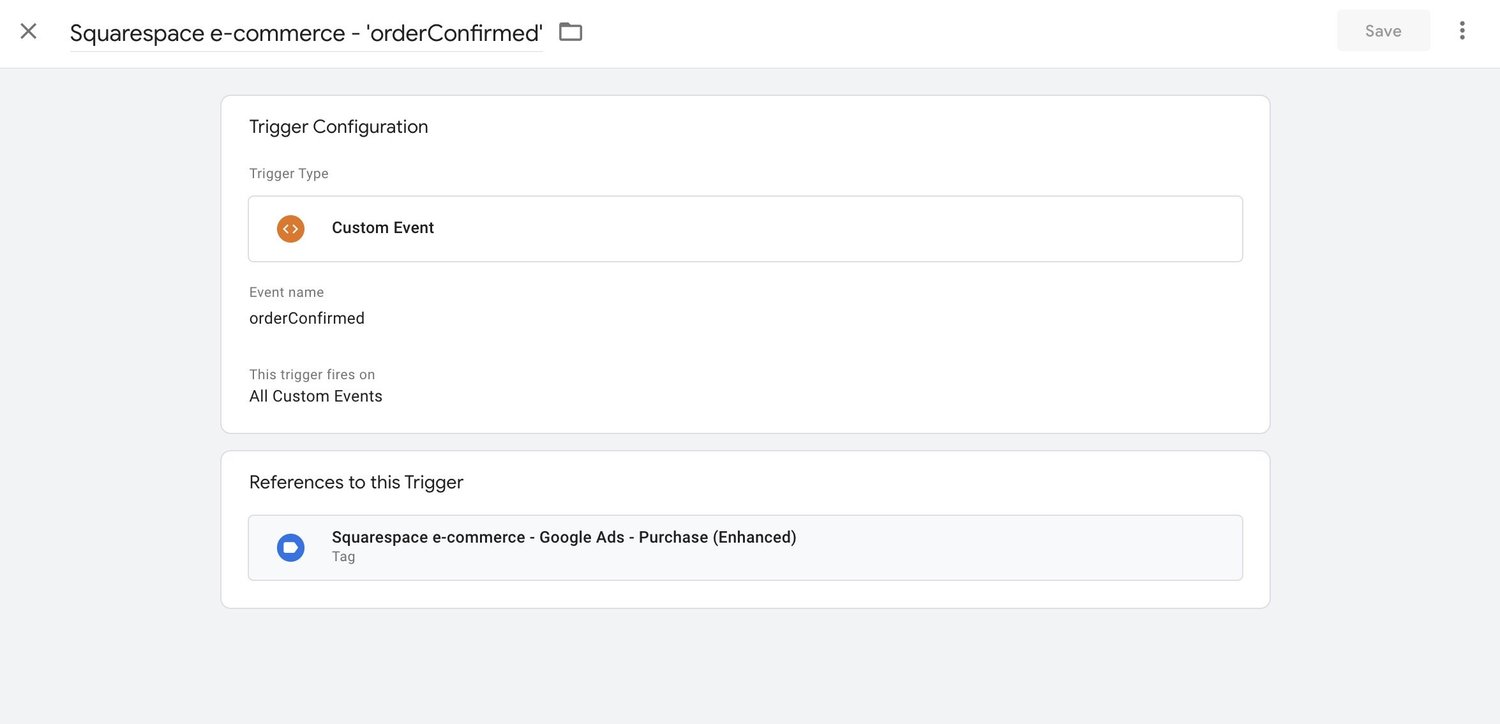
Create a custom event trigger named “Squarespace e-commerce - ‘orderConfirmed’” based on the orderConfirmed event in the data layer.
Variables
You’ll need to set up several variables in GTM to capture the necessary data for enhanced conversion. Here are the key variables based on the provided JSON:
dl.conversionValueSquarespace E-Commerce - dl.customerEmailAddressSquarespace E-Commerce - User-Provided Datadl.orderId
Ensure these variables are referencing the appropriate keys from the data layer.
Google Ads Conversion Tag
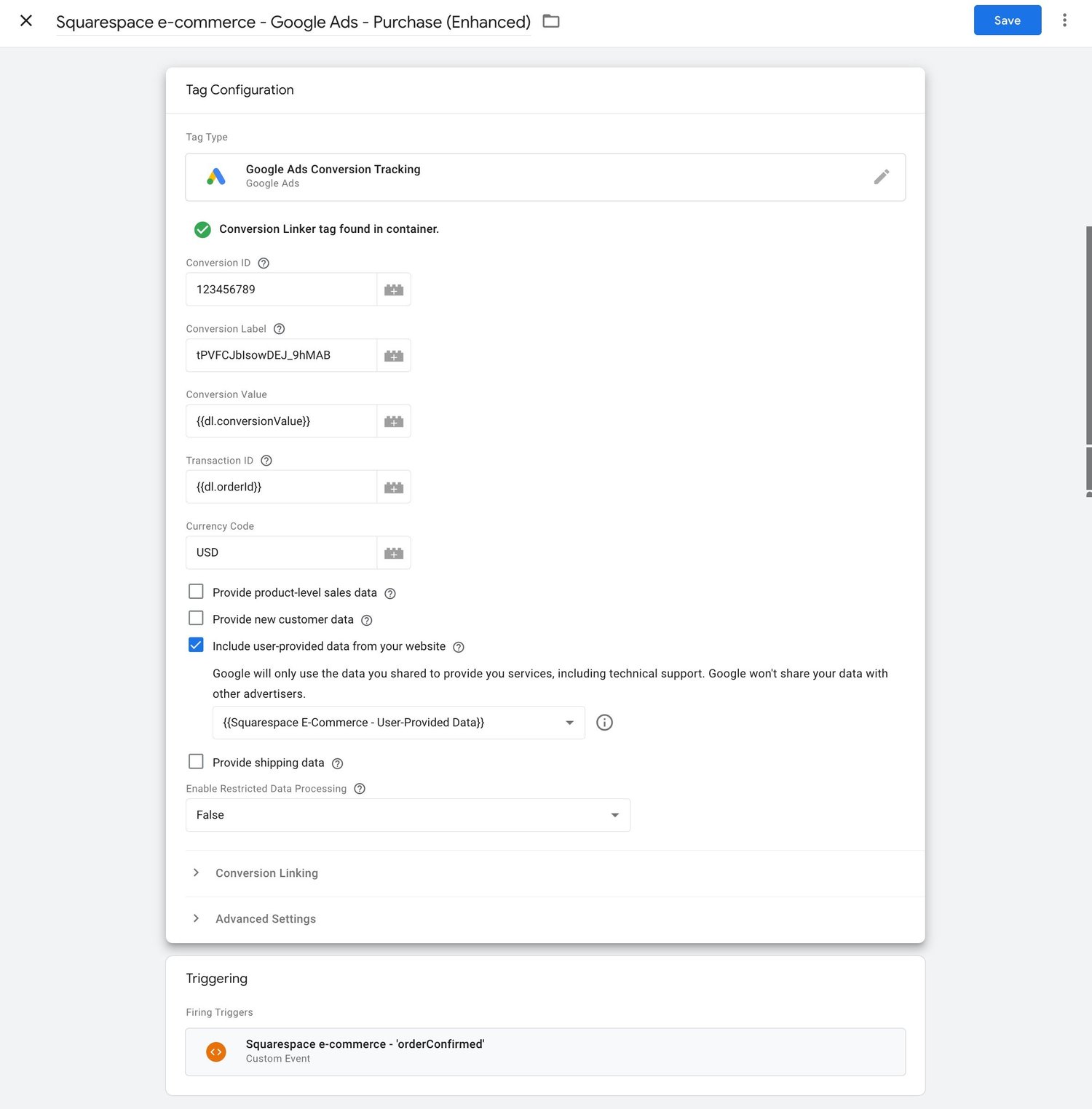
Create a tag in GTM with the following details:
- Tag Type:
Google AdsConversion Tracking - Conversion ID:
copy from Google ADs - Conversion Label:
copy from Google ADs - Currency:
Use your store currency code, e.g. USD Check the “Include user-provided data from your website” and create a new variableCreating the “User-Provided Data” Variable in GTM:Navigate to your GTM workspace.- Under ‘Variables’, click ‘New’.
- Name your variable “Squarespace E-Commerce - User-Provided Data.”
- Set the ‘mode’ parameter to ‘MANUAL’.
- For the ‘email’ field, use the “
{{Squarespace E-Commerce - dl.customerEmailAddress}}” variable. - Save your changes.
Ensure this tag fires using the previously created “Squarespace e-commerce - ‘orderConfirmed’” trigger.
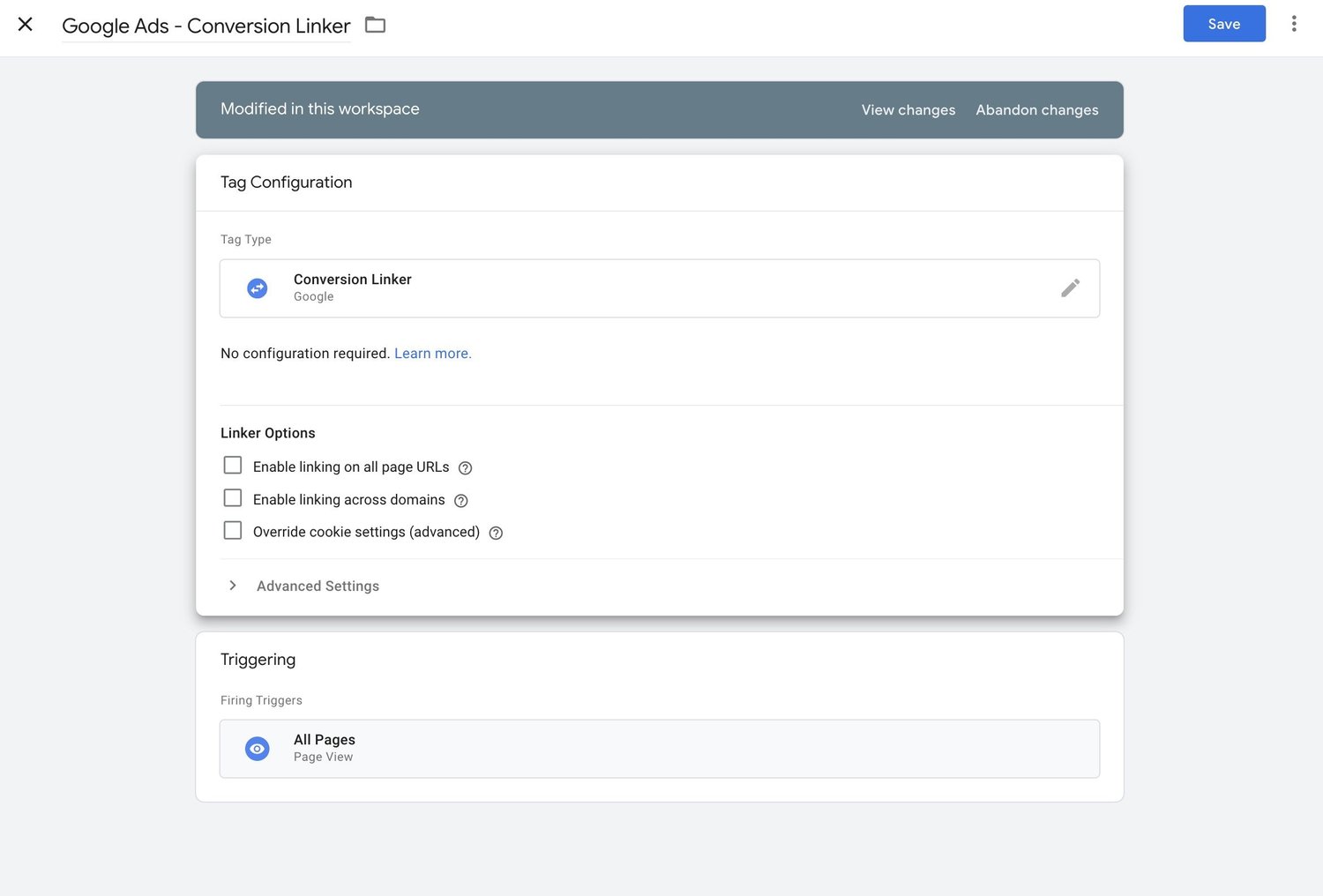
Conversion Linker
Publish
Once all configurations are in place, click on the “Submit” button in GTM to publish your changes.
Test
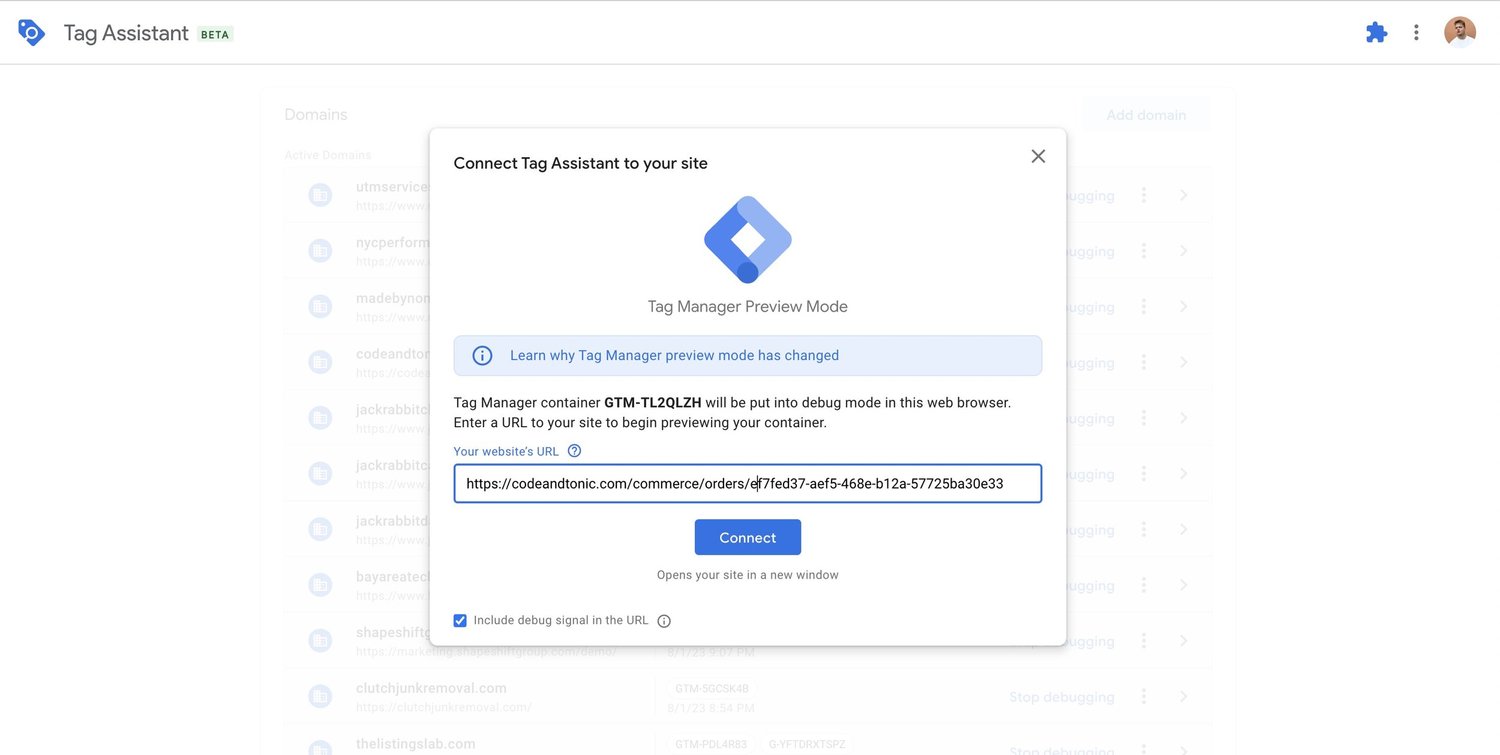
Testing is a bit tricky, as you will lose connection when doing your test e-commerce purchase with Google Tag Assistant. Squarespace doesn’t allow GA4 or code injection in checkout to protect credit card data, so Tag Assistant will disconnect and will not reconnect at the Squarespace order status / order confirmation page. You have 2 options:
- Copy-paste the full URL of the Squarespace e-commerce purchase Order Status page to a new Google Tag Assistant preview session.
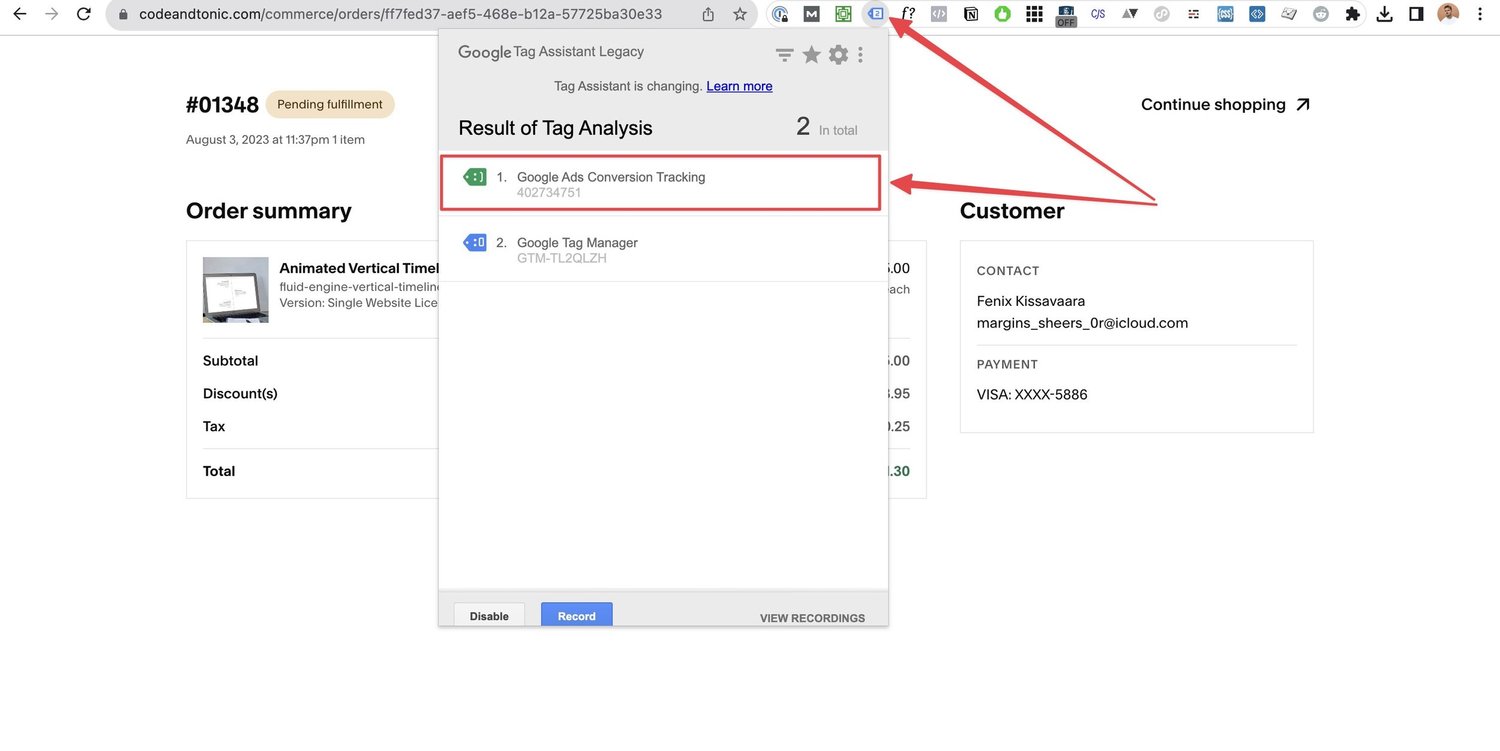
- Publish your untested Google Tag Manager container to be live, and use the Tag Assistant Legacy (by Google) which does not disconnect during Squarespace checkout (the payment section)
Conclusion
Implementing enhanced Google Ads conversion tracking for Squarespace E-commerce store provides absolute must-have data into your sales. You really shouldn’t do Google Ads advertising without setting it up first. As it allows you to optimize your ad spend and see if ads work or don’t work. By following the steps outlined above, you can ensure accurate conversion data and make data-driven decisions for your advertising campaigns.
Need help?
Confused? Uncomfortable with data layers, javascript and Google Tag Manager? Let me install Google Ads conversion tracking for you! I’m the only one who does the full Enhanced Conversion tracking version, which will make you see more conversions. Please get in touch at Contact us